

How to Take Control of Your Notifications

Apps and websites regularly push alerts to your devices, but there are ways to minimize disruption and still stay in the loop.

How to Take Control of Your Notifications
TT

How to Take Control of Your Notifications

How to Take Control of Your Notifications

Notifications on your phone and computer are great for keeping up to date with breaking news, weather and traffic updates. But those real-time alerts popping up can also drive you nuts with the frequent interruptions bombarding your screen — not to mention the battery burn on your device from all the activity.

Looking for more business news? We can help.

Between a presidential election, the Olympics and the usual swirl of current events, 2020 promises to be an especially busy year. If you’re already feeling the information overload and want to dial down the notifications, or just need a little peace and quiet, here’s a guide to managing your alerts so you get the most useful updates.

Make an Early Decision

The first time you open a newly downloaded app, it may ask for permission to send you notifications. You can say no.

Alerts from some types of apps, like hurricane trackers, local news or transit aids, are incredibly useful, while others may just want to push coupons or announce a movie opening. Consider how much you want to hear from this app and make your decision. (Some websites will also ask to send notifications to your computer desktop when you first visit.)

Opting out here does not mean you can never get those notifications. Later, if you decide you really want those alerts, you can always enable them in your system settings or just stash them for reading later in your Notifications list.

Prune Your Phone’s or Tablet’s Settings

Some apps may have notification controls in their own settings, but you can also manage alerts in your device’s Settings section. Just look for “Notifications” or “Apps & Notifications.” In the Notification settings, look for a list of apps and select one you want to change. (Keep in mind that the precise screens you see vary by your device’s operating system and version.)

On an Android phone’s Apps & Notifications screen, tap an app’s icon to get to its App Info page. Next, tap App Notifications to get to all the controls for how that app can alert you. To turn off notification sounds and lock screen alerts for all apps, go to the Apps & Notifications screen and tap Notifications to get started.

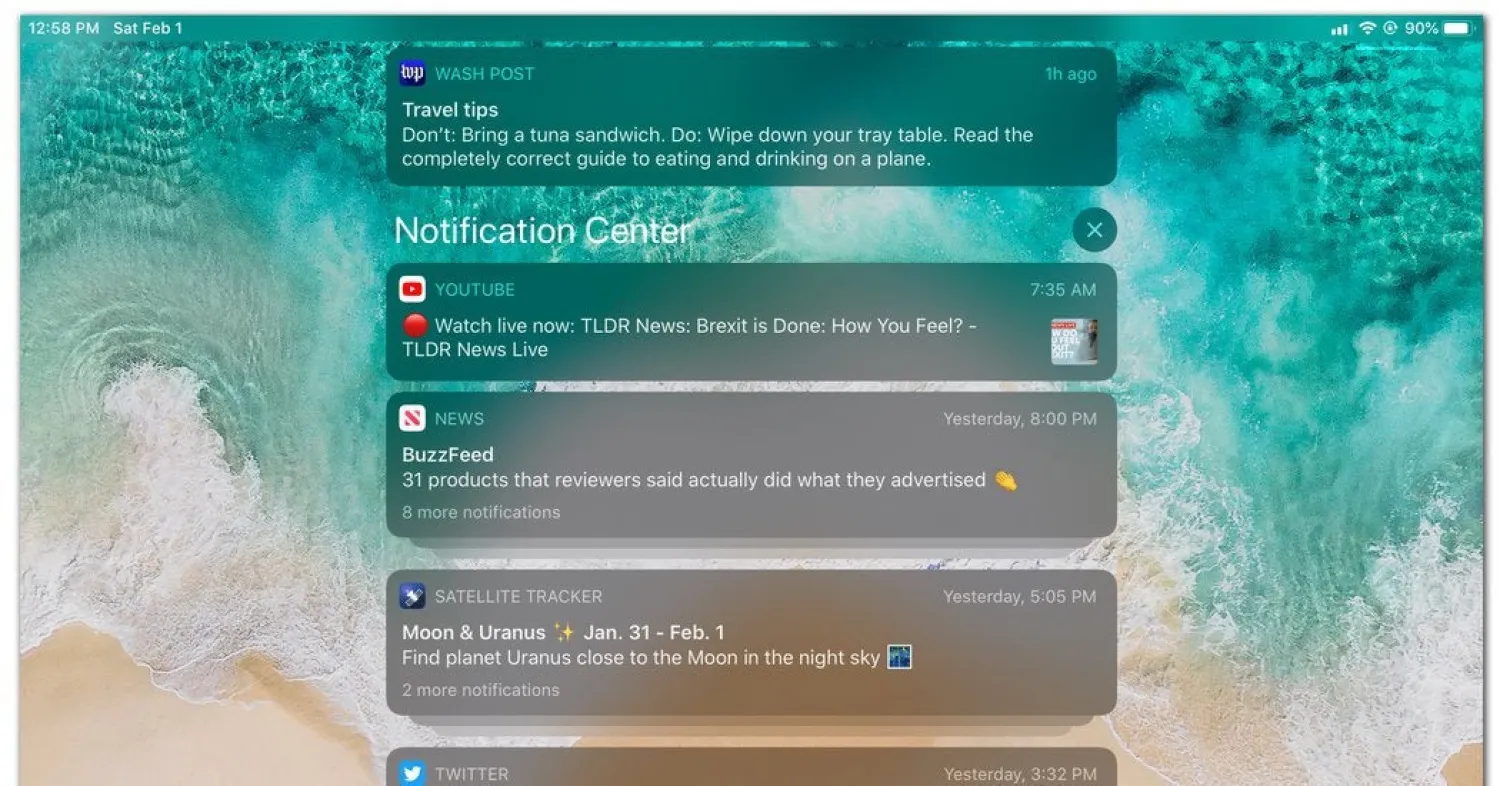
In iOS 13, the operating system for Apple devices, tap the button at the top of an app’s settings screen to allow or disable notifications. If you decide to keep the notification on, you can adjust where and how it appears on your device. If you don’t want a banner alert popping up on the lock screen, you can relegate it directly to the iOS Notifications Center area so you can browse all your updates at once later on.
Manage Desktop Notifications

Alerts from websites and apps are also part of desktop life — Windows 10, the Mac operating system and some Linux distributions all support them. To adjust how your computer generally handles notifications, dig into the system settings.

On a Windows 10 PC, open the Settings app and select System. On a Mac, open the System Preferences icon and look for Notifications controls. (Linux users should check their particular help guide.)

Most browsers have controls for managing notifications from specific websites. To adjust these alerts, go to the settings or preferences area for Google Chrome, Mozilla Firefox, Opera, Safari or the browser of your choice and look for the Notifications section.

Hang Up the ‘Do Not Disturb’ Sign

Sometimes you just need a temporary break from all the interruptions, like when you want to stream a video or take a nap. The Do Not Disturb mode in your Android, iOS or Mac system settings can minimize or disable notifications all at once. The Focus Assist mode in Windows 10 (called Quiet Hours in previous versions) offers the same control.

In the Do Not Disturb or Focus Assist settings, you can turn everything off (and on) manually and adjust sound effects. You can also set a daily schedule to automatically suppress alerts — like during your sleeping hours.

If you don’t feel like tapping through screens to get to the Do Not Disturb controls, iOS offers a few shortcuts. Swipe up from the bottom of the screen to open the Control Center, or swipe down from the upper-right corner of the screen on some models. Tap the crescent moon icon to toggle on (or off) Do Not Disturb. Apple’s voice assistant, Siri, also responds to “Hey, Siri, turn on (off) Do Not Disturb.”

To jump to Android’s Do Not Disturb controls, swipe down from the top of the device’s screen and tap the Do Not Disturb icon in the Quick Settings box. In more recent versions of the Android system, you can also ask the Google Assistant to turn the mode on or off when you’re ready to jump back into the action.

(The New York Times)


Vietnam AI Law Takes Effect, First in Southeast Asia

People wearing raincoats ride motorbikes through the rain past a fast-food restaurant in Hanoi on February 26, 2026. (Photo by Nhac NGUYEN / AFP)
TT

Vietnam AI Law Takes Effect, First in Southeast Asia

People wearing raincoats ride motorbikes through the rain past a fast-food restaurant in Hanoi on February 26, 2026. (Photo by Nhac NGUYEN / AFP)

A law regulating artificial intelligence went into effect in Vietnam on Sunday, making it the first country in Southeast Asia with a comprehensive framework on the booming technology.

The legislation passed by the National Assembly in December establishes a risk-based regulatory model requiring human oversight and control of AI.

It is in force as of March 1, according to the text.


OpenAI Raises $110 billion, Including $50 billion from Amazon

FILE PHOTO: OpenAI logo is seen in this illustration taken May 20, 2024. REUTERS/Dado Ruvic/Illustration//File Photo/File Photo
TT

OpenAI Raises $110 billion, Including $50 billion from Amazon

FILE PHOTO: OpenAI logo is seen in this illustration taken May 20, 2024. REUTERS/Dado Ruvic/Illustration//File Photo/File Photo

OpenAI announced Friday a massive $110 billion funding round valuing the ChatGPT maker at $730 billion, with SoftBank, Nvidia and Amazon each making multi-billion dollar commitments as the artificial intelligence company races to meet surging global demand, AFP reported.

The investment round -- one of the largest in Silicon Valley history -- includes $30 billion from Japanese conglomerate SoftBank, $30 billion from chip giant NVIDIA, and $50 billion from Amazon, with additional investors expected to join as the round progresses.


South Korea Approves Google Bid to Export High-precision Map Data

FILE PHOTO: The Google logo is displayed during a press conference in Berlin, Germany, November 11, 2025. REUTERS/Lisi Niesner/File Photo
TT

South Korea Approves Google Bid to Export High-precision Map Data

FILE PHOTO: The Google logo is displayed during a press conference in Berlin, Germany, November 11, 2025. REUTERS/Lisi Niesner/File Photo

South Korea on Friday approved Google's request to export the country's high-precision map data to overseas servers, a major reversal after two decades of rejection that clears the way for the US tech giant to enter a market dominated by local apps.

The approval was made "on the condition that strict security requirements are met," the Ministry ‌of Land, ‌Infrastructure and Transport said in a ‌statement.

The ⁠conditions include blurring ⁠military and other sensitive security-related facilities, as well as restricting longitude and latitude coordinates for South Korean territory on products such as Google Maps and Google Earth, Reuters quoted it as saying.

Google must process map data on locally based servers and ⁠is only allowed to export data related ‌to navigation and ‌direction services that have been pre-approved by the government.

The ‌South Korean government also reserves the right ‌to request revisions to maps, and Google must set up a security incident prevention framework to respond to emergency issues, the ministry added.

South Korea is just ‌one of a few countries where Google Maps does not function properly, which ⁠has ⁠allowed local companies such as Naver and Kakao to dominate digital map services.

Seoul had shot down Google's previous bids in 2007 and 2016 on national security grounds, citing risks that detailed map data could expose sensitive military and security facilities in a country that remains technically at war with North Korea.